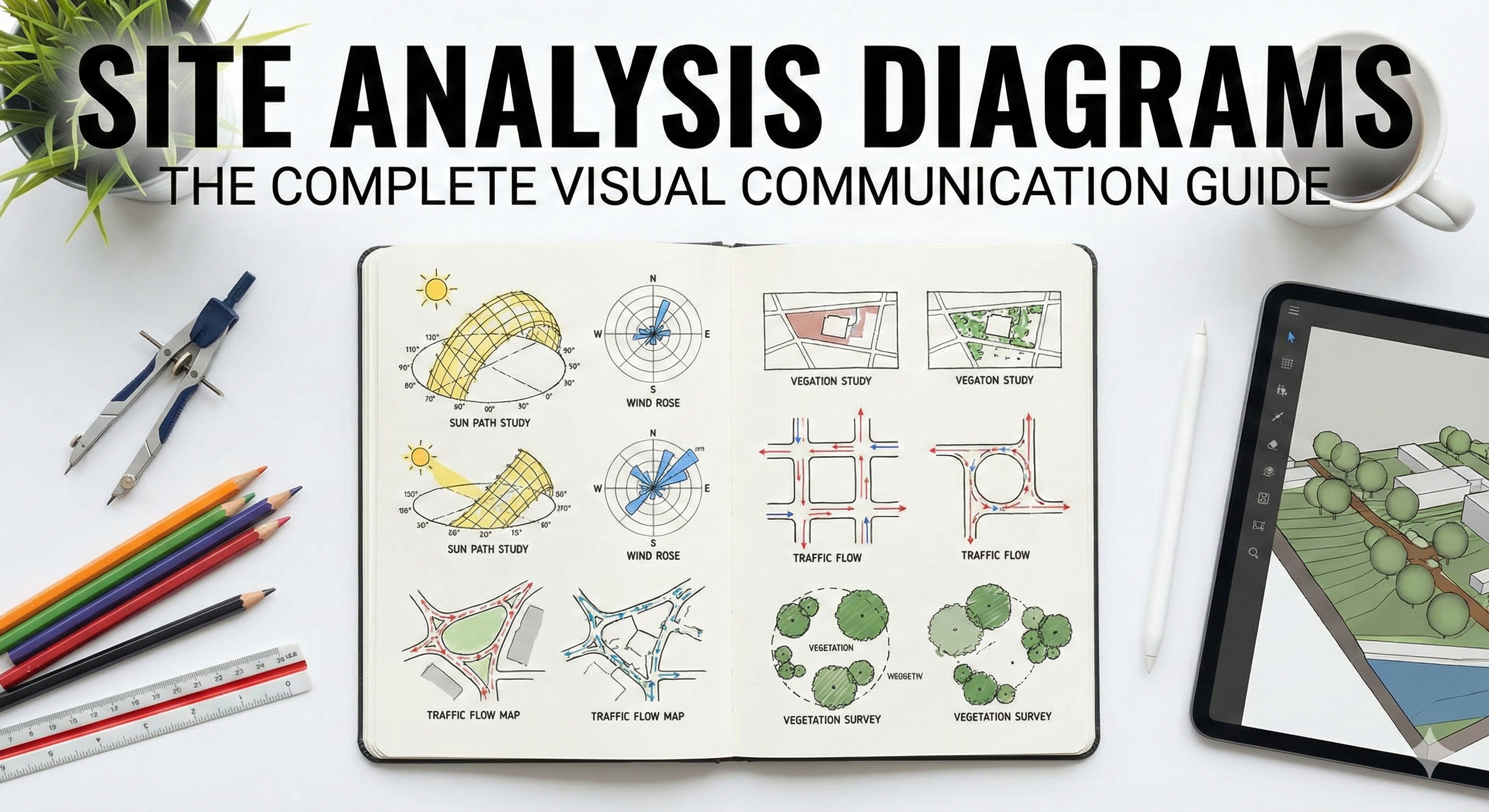
Site Analysis Diagrams: Types, Examples & How to Draw Them
What Are Site Analysis Diagrams?
Site analysis diagrams are visual translations of research findings that communicate a site's key characteristics, constraints, and opportunities. Unlike photographs or technical drawings, diagrams abstract and emphasize specific information to tell a clear story.
Purpose:
- Communicate findings to clients, stakeholders, and design teams
- Identify patterns invisible in raw data
- Guide design decisions by revealing relationships between site characteristics
- Document process for presentations, portfolios, and approvals
The fundamental rule: Diagrams are not decoration. Every line, color, and symbol should communicate specific information that informs design.
Why Diagrams Matter More Than Data
You can gather 100 pages of site data, but if you can't communicate it visually, it's useless. Stakeholders don't read technical reports - they respond to clear visuals.
Example: Imagine presenting a residential project to a client. You could say:
"The site receives 6.2 kWh/m²/day of solar radiation on the south slope between October and March, with 85% solar access during winter months due to minimal overshadowing from adjacent structures positioned 12 meters to the north..."
Or you could show this diagram:
Solar Access Diagram:
- Site shaded in gradients (dark = shade, yellow = full sun)
- Sun path overlaid with winter/summer arcs
- Adjacent buildings shown in simple massing
- South slope highlighted with "6+ hours winter sun" label
The client instantly understands: Build on the south slope for passive solar gain.
Data informs. Diagrams communicate.
The Three-Stage Diagram Process
Stage 1: Research (Data Collection)
Gather quantitative and qualitative information:
- Site measurements, boundaries, topography
- Solar angles, wind direction, temperatures
- Zoning regulations, setbacks, height limits
- Utilities, access points, easements
- Existing vegetation, views, circulation patterns
Stage 2: Analysis (Identifying Patterns)
Examine relationships between data sets:
- How does slope affect drainage?
- Where do sun, views, and zoning all align favorably?
- What constraints conflict (e.g., best views face noisy street)?
- Which site areas are buildable vs. constrained?
Stage 3: Synthesis (Visual Communication)
Create diagrams that reveal the most important findings:
- Focus on relationships, not just facts
- Show opportunities AND constraints
- Use visual hierarchy (what's most important?)
- Layer information for clarity, not confusion
Essential Diagram Types
1. Context and Location Diagrams
Purpose: Establish where the site exists within its larger urban/regional context.
What to show:
- Site location within city/region
- Distance to key landmarks (downtown, airport, transit stations)
- Major roads, highways, transit lines
- Adjacent neighborhoods/land uses
Technique:
- Zoom sequence: Region → City → Neighborhood → Site (3-4 maps at increasing scales)
- Figure-ground: Buildings (black), open space (white), site (accent color)
- Concentric circles: 5-minute walk, 10-minute walk, 15-minute walk radii from site
Example:
Regional map: Site location within metropolitan area (1:100,000 scale)
District map: Site within neighborhood, major streets shown (1:10,000)
Local map: Site + immediate surroundings, building footprints (1:2,000)
UrbanEyes tip: The platform auto-generates multi-scale context maps from satellite imagery - no manual tracing required.
2. Topography and Landform Diagrams
Purpose: Communicate elevation changes, slopes, and natural drainage patterns.
What to show:
- Contour lines (label intervals: 1m, 2m, 5m depending on slope)
- High/low points (spot elevations)
- Slope gradients (color-coded: <5% = buildable, 5-15% = moderate, >15% = steep)
- Natural drainage flow (arrows showing water movement)
Techniques:
- Contour emphasis: Thicken every 5th contour line (makes reading easier)
- Shaded relief: Add shadows to show 3D form
- Slope analysis: Color-code by buildability (green = flat, yellow = moderate, red = too steep)
- Section diagrams: Show elevation change along key axes
Common mistake: Showing every 0.5m contour on a shallow site - it becomes visual noise. Show only what matters (e.g., 1m contours for most residential sites).
3. Solar and Shadow Diagrams
Purpose: Show sun path, shadow patterns, and solar radiation throughout the year.
What to show:
- Sun path arcs (summer solstice, winter solstice, equinoxes)
- Shadow studies (9 AM, noon, 3 PM on key dates)
- Solar access map (hours of direct sunlight per day)
- Optimal building orientation for passive solar
Techniques:
- Sun path overlay: Draw arcs across site plan with hour markers
- Shadow progression: 4-6 diagrams showing shadows at different times
- Heat map: Color-code site by solar radiation (red = high, blue = low)
- 3D axonometric: Show shadows in three dimensions
Key dates to diagram:
- June 21 (summer solstice): Longest day, highest sun angle
- December 21 (winter solstice): Shortest day, lowest sun angle
- March/Sept 21 (equinoxes): Moderate sun angle, 12-hour days
Traditional method: 8-16 hours of manual shadow drawing UrbanEyes method: Automated hourly shadow studies in 3 minutes
4. Wind and Climate Diagrams
Purpose: Visualize prevailing winds, temperature patterns, and microclimate zones.
What to show:
- Wind rose (direction and speed by season)
- Prevailing wind direction overlaid on site
- Protected vs. exposed areas
- Microclimate zones (warm/cool areas based on sun/wind/vegetation)
Techniques:
- Arrows: Show wind direction and relative strength (thicker = stronger)
- Color zones: Blue = cold winter winds, orange = warm summer breezes
- Vegetation as indicator: Show how trees create wind shadows
- Comfort zones: Highlight areas comfortable for outdoor use
5. Circulation and Movement Diagrams
Purpose: Show how people (and vehicles) move through and around the site.
What to show:
- Pedestrian paths (sidewalks, trails, desire lines)
- Vehicle circulation (roads, driveways, parking)
- Entry points and access
- Movement intensity (busy vs. quiet paths)
Techniques:
- Line weight: Thicker lines = higher traffic volume
- Arrows: Show direction of movement
- Desire lines: Dashed lines showing where people actually walk (vs. official paths)
- Node diagrams: Circles showing gathering points/intersections
Example: A university campus site might show:
- Heavy pedestrian flow along main diagonal path (thick line)
- Light flow along perimeter sidewalks (thin line)
- Vehicular access limited to north edge (dashed line with car symbols)
- Entry nodes: main entrance (large circle), secondary entries (small circles)
6. Zoning and Regulatory Diagrams
Purpose: Communicate legal constraints (setbacks, height limits, density, use restrictions).
What to show:
- Property line vs. buildable area (after setbacks)
- Setback dimensions (front, side, rear)
- Height limits (plane diagrams showing maximum envelope)
- Floor Area Ratio (FAR) calculations
- Overlay zones (historic district, flood zone, tree preservation)
Techniques:
- Dashed lines: Property boundary
- Solid lines: Buildable area (after setbacks)
- Shaded zones: Unbuildable areas (setbacks, easements, wetlands)
- 3D envelope: Show maximum building massing allowed by zoning
- Labels with dimensions: "15' side setback", "35' height limit"
Common mistake: Forgetting to show combined constraints. A site might have good solar access but be unbuildable due to wetland setbacks - show both on one diagram.
7. Views and Sight Lines Diagrams
Purpose: Map visual connections (what you see from the site, what sees into the site).
What to show:
- Desirable views (mountains, water, skyline)
- Undesirable views (parking lot, industrial buildings)
- View corridors (open sight lines worth preserving)
- Privacy concerns (overlooking from neighbors)
Techniques:
- Cone of vision: Wedge shapes showing view angles from key site locations
- Photo locations: Number points on plan, match to photographs
- Color coding: Green = preserve view, red = block view, yellow = screen/filter
- Perspective sketches: Show what the view actually looks like
Example: Mountain site with valley views:
- Green cones: panoramic west view (preserve)
- Yellow cone: partial south view (filter with landscaping)
- Red: neighbor's house blocks east view (accept/screen)
8. Vegetation and Ecology Diagrams
Purpose: Document existing plants, habitat, and natural systems.
What to show:
- Tree locations (with species and size)
- Tree canopy extent (shown as circles representing drip line)
- Protected/significant trees
- Vegetation types (forest, meadow, lawn)
- Wildlife corridors or habitat
Techniques:
- Symbols: Different tree symbols for deciduous vs. evergreen
- Canopy circles: Show mature spread (5m, 10m, 15m diameter)
- Color zones: Dark green = mature forest, light green = young trees, tan = lawn
- Labels: Species names for significant trees
Decision-making diagram: Overlay trees with buildable area:
- Trees inside buildable zone → Decision: remove, relocate, or design around?
- Protected trees → Must preserve, affects building placement
9. Utilities and Infrastructure Diagrams
Purpose: Map existing utilities and access points.
What to show:
- Water main, sewer, storm drain locations
- Electric, gas, telecom lines
- Utility easements (no-build zones)
- Connection points for new buildings
Techniques:
- Line types: Solid = water, dashed = sewer, dotted = electric
- Color coding: Blue = water, brown = sewer, red = electric, yellow = gas
- Access points: Symbols for manholes, meters, transformers
- Easement overlay: Hatched zones where building is restricted
Why this matters: Connecting to utilities can cost $10,000-$50,000+. If the sewer main is 200 feet away on the far side of the property, you need to know that before designing.
10. Synthesis/Composite Diagrams
Purpose: Combine multiple data sets to identify optimal building locations or design opportunities.
What to show:
- Overlay of all favorable conditions (sun + views + buildability)
- Overlay of all constraints (setbacks + steep slopes + protected trees)
- Opportunity zones (where the most factors align positively)
- Challenge zones (where constraints overlap)
Techniques:
- Layered transparency: Stack multiple colored overlays (green = good sun, blue = good views, purple where both overlap)
- Dot matrix: Different dot patterns for different factors, density shows intensity
- Heat map: Color gradient from red (ideal) to blue (poor)
Example synthesis diagram:
Optimal building zone:
✅ South-facing (passive solar)
✅ Flat area (easy to build)
✅ Outside setbacks (legal)
✅ Mountain views (desirable)
✅ Near utility connection (cost-effective)

Constrained zone:
❌ Steep slope (grading costs)
❌ North-facing (poor solar)
❌ Protected trees (cannot remove)
❌ Within drainage easement (cannot build)
The design team immediately knows: Build in the optimal zone.
Visual Communication Principles
Hierarchy: What's Most Important?
Not all information is equally important. Use visual weight to create hierarchy:
Most important (high contrast, large, bold):
- Site boundary
- Optimal building location
- Critical constraints (e.g., wetland, setback violation)
Secondary (medium contrast):
- Topography, vegetation, views
Background/context (low contrast, thin lines):
- Adjacent buildings, distant features, minor details
Technique: Use line weight variation: 0.1mm for background, 0.5mm for primary info, 1.0mm+ for critical elements.
Color: Strategic, Not Decorative
Use color to communicate, not decorate.
Effective color strategies:
Sequential (gradient): Light → Dark for quantitative data (e.g., solar radiation: pale yellow = low, deep red = high)
Diverging: Two colors for opposites (e.g., blue = cold wind, red = warm sun)
Categorical: Distinct colors for different types (e.g., residential = yellow, commercial = red, park = green)
Accent: Neutral base (gray) + one bright color highlighting key information (e.g., optimal building site in orange)
Common mistake: Using rainbow gradients (red-orange-yellow-green-blue-purple) for no reason. This is visual noise.
Best practice: Limit to 3-5 colors per diagram. More = confusing.
Labels and Annotations
Every diagram needs:
- Title: What does this diagram show? ("Solar Access - Winter Solstice")
- Scale: Graphic scale bar or ratio (1:500)
- North arrow: Site orientation
- Legend: What do colors/symbols mean?
- Key dimensions/labels: Annotate important features
Annotation techniques:
- Leaders/arrows: Point from label to feature
- Callout boxes: Highlight key findings ("6+ hours winter sun")
- Data labels: Show quantitative values ("12m setback", "85% slope")
Keep labels minimal: Don't clutter the diagram with obvious information. If it's clear from context, don't label it.
Consistency Across Diagrams
Use the same base map for all diagrams:
- Same site boundary shape
- Same orientation (north arrow)
- Same scale (so diagrams are comparable)
- Same drawing style
Why: This allows viewers to mentally overlay diagrams and see relationships.
Example: If your solar diagram and zoning diagram use the same base, viewers can easily see: "The sunniest part of the site is also outside the setbacks - perfect for building placement."
Diagramming Tools and Workflows
Digital Tools
Vector-based (scalable, professional):
Adobe Illustrator ($22.99/month)
- ✅ Professional standard
- ✅ Precise control over graphics
- ✅ Scalable (diagrams stay sharp at any size)
- ❌ Steep learning curve
- ❌ Expensive for students
Rhino + Grasshopper ($995 one-time)
- ✅ Parametric diagrams (adjust parameters, diagram updates)
- ✅ Data-driven visualization
- ❌ Requires programming mindset
QGIS (Free)
- ✅ GIS analysis generates diagrams directly
- ✅ Real data (not just graphics)
- ❌ Learning curve for non-GIS users
UrbanEyes (€4.99-€49/month)
- ✅ Automated diagram generation (solar, wind, context)
- ✅ No learning curve (15 minutes to complete diagrams)
- ✅ Export to PDF, PNG, DWG for editing
- ❌ Limited to pre-built diagram types
Raster-based (pixel graphics, rendering):
Photoshop ($22.99/month)
- ✅ Photo editing, collage, atmospheric graphics
- ❌ Not ideal for precise diagrams (use Illustrator instead)
Procreate (iPad) ($12.99 one-time)
- ✅ Intuitive sketching
- ✅ Great for hand-drawn diagram aesthetic
- ❌ Limited export options
Presentation software:
InDesign ($22.99/month)
- ✅ Layout multiple diagrams into polished presentation boards
- ✅ Typography control
PowerPoint/Keynote (Free/included)
- ✅ Accessible, familiar
- ✅ Good for quick diagrams
- ❌ Limited precision
Hand-Drawn vs. Digital
Hand-drawn diagrams:
- Pros: Fast, expressive, approachable aesthetic
- Cons: Hard to edit, limited precision, doesn't look "finished"
- Best for: Concept development, internal team discussions, early-stage presentations
Digital diagrams:
- Pros: Precise, editable, professional, scalable
- Cons: Time-consuming, requires software skills
- Best for: Final presentations, client deliverables, portfolio work
Hybrid workflow (recommended):
- Sketch by hand (explore ideas quickly)
- Scan and trace digitally (refine in Illustrator)
- Add data overlays (solar analysis from UrbanEyes, zoning from GIS)
- Polish in InDesign (layout final presentation boards)
Diagram Workflows by Project Phase
Pre-Design/Feasibility Study
Goal: Is this site suitable for the project?
Diagrams needed:
- Context and location
- Zoning and buildable area
- Topography and drainage
- Utilities access
- Synthesis: buildable zones
Timeline: 1-3 days (traditional) or 2 hours (with AI tools)
Schematic Design
Goal: Where should the building go? How should it orient?
Diagrams needed:
- Solar and shadow analysis
- Wind and climate
- Views and sight lines
- Circulation and access
- Vegetation to preserve
- Synthesis: optimal building placement
Timeline: 3-7 days
Design Development
Goal: Refine building design in response to site.
Diagrams needed:
- Detailed shadow studies (hourly, seasonal)
- Grading and stormwater management
- Landscape and outdoor space organization
- Phasing (if multi-phase development)
Timeline: 2-5 days
Presentation/Approval
Goal: Communicate design to client, planning board, community.
Diagrams needed:
- All of the above, polished and formatted
- Before/after comparisons
- 3D visualizations
- Impact assessments (traffic, stormwater, shadows on neighbors)
Timeline: 3-10 days (graphic design and layout)
Case Study: Residential Site Analysis Diagram Set
Project: Single-family home, 0.5-acre suburban lot, Boston, MA
Client need: Understand where to build, how to orient the house, and which trees to preserve.
Diagram Set (8 diagrams):
1. Context Diagram
- Shows lot within neighborhood
- Highlights proximity to park (200m), transit stop (400m)
- Finding: Good walkability, family-friendly location
2. Zoning Diagram
- Property line: 0.5 acres
- Setbacks: 25' front, 15' sides, 30' rear
- Buildable area: ~8,000 sq ft (shaded in green)
- Finding: Buildable zone is center of lot
3. Topography Diagram
- Contours: 1m intervals
- High point: northeast corner (elevation 52m)
- Low point: southwest corner (elevation 48m)
- Slope: 8% (gentle, easily buildable)
- Finding: Natural drainage flows southwest
4. Solar Diagram
- Sun path: Winter solstice overlaid
- Shadow study: 9am, 12pm, 3pm (December 21)
- Adjacent house to west casts morning shadow
- Finding: South and east sides get best winter sun
5. View Diagram
- Desirable views: Park to north (green cone)
- Undesirable: Neighbor's garage to south (red cone)
- Finding: Orient living spaces north for park views
6. Tree Inventory
- 12 existing trees mapped
- 3 large oaks (15m canopy, healthy, preserve)
- 6 small maples (8m canopy, can be removed/relocated)
- 3 dead pines (remove)
- Finding: Preserve oaks on west edge, they provide afternoon shade
7. Utilities Diagram
- Water main: along street (north edge)
- Sewer: 20m south of property line (requires pump station)
- Electric: overhead lines on north side
- Finding: Sewer connection is expensive ($15k+ for pump)
8. Synthesis Diagram
- Optimal building location:
- Center-south of lot (within buildable zone)
- South-facing (passive solar)
- Views of park to north
- Preserves oak trees on west
- Accepts sewer pump cost (unavoidable)
- Outdoor spaces:
- South-facing deck (winter sun, views)
- West shade garden (under oaks, afternoon shade)
Client reaction: "This makes perfect sense. We know exactly where to build and why."
Outcome: House designed in optimal location, 3 oak trees preserved, south-facing deck became favorite outdoor space, 30% heating cost reduction due to passive solar orientation.
Diagram production time:
- Traditional method: 12-16 hours
- UrbanEyes + Illustrator: 3 hours
Common Diagram Mistakes
1. Too Much Information on One Diagram
The mistake: Trying to show topography + solar + zoning + views + trees on a single diagram.
The result: Visual chaos. No one can understand it.
The fix: One diagram, one topic. Create multiple diagrams and let viewers compare them mentally.
2. Meaningless Colors
The mistake: "Let's make this diagram blue and yellow because it looks nice."
The result: Colors don't communicate anything.
The fix: Every color must have meaning. Blue = water/shadow/cold. Yellow = sun/warmth. Green = vegetation. Gray = neutral/context.
3. No Scale or North Arrow
The mistake: Beautiful diagram, but viewers can't tell: How big is this? Which way is north?
The result: Diagram is unusable.
The fix: Always include scale bar (graphic, not just ratio) and north arrow. Make them visible but not dominant.
4. Inconsistent Base Maps
The mistake: Solar diagram shows site as rectangle, zoning diagram shows it as trapezoid (because you traced different sources).
The result: Confusing. Diagrams don't align.
The fix: Use the same base site outline for all diagrams. Trace it once accurately, then duplicate for all diagrams.
5. Diagram ≠ Decoration
The mistake: Creating visually impressive graphics that don't actually inform design decisions.
The result: Looks great in portfolio, useless in design process.
The fix: Ask, "What design decision does this diagram support?" If the answer is "none," don't make the diagram.
Diagrams for Different Audiences
Client Presentations
Priorities: Clarity, simplicity, visual appeal
Style:
- Clean, polished graphics
- Minimal text (use images and graphics to tell story)
- Color (makes it engaging)
- Avoid jargon
Format: Large-format prints (24"x36"), PDF presentation, website
Design Team (Internal)
Priorities: Accuracy, detail, data
Style:
- Precision over aesthetics
- Include all relevant data (even if visually dense)
- Technical annotations
- Layered files (can turn layers on/off to focus)
Format: CAD files, editable vector files, GIS layers
Planning/Zoning Boards
Priorities: Compliance, context, impact
Style:
- Professional, formal
- Clearly show code compliance (setbacks, heights, FAR)
- Before/after comparisons
- Impact studies (shadows on neighbors, traffic, stormwater)
Format: Standard sheet sizes (11"x17", 24"x36"), bound reports
Community Engagement
Priorities: Accessibility, transparency, non-technical
Style:
- Simple, friendly graphics
- Avoid architectural jargon
- Show how project benefits community
- Interactive (if digital)
Format: Website, posters, handouts, online maps
The Future of Site Analysis Diagrams
AI-Generated Diagrams
Platforms like UrbanEyes are automating diagram generation:
- Upload site address → automatic context maps
- Click "solar analysis" → instant sun path and shadow diagrams
- Export to Illustrator/InDesign for final polish
Impact: What took 8 hours now takes 15 minutes. Designers spend less time drafting, more time designing.
Interactive/Web-Based Diagrams
Static diagrams are giving way to interactive maps:
- Viewers can toggle layers (show/hide trees, zoning, solar)
- 3D navigation (rotate site, see from different angles)
- Time sliders (see shadows change hour-by-hour)
Tools: Mapbox, ArcGIS Online, custom web apps
Real-Time Data Integration
Diagrams increasingly pull live data:
- Current weather conditions
- Real-time traffic patterns
- Up-to-date zoning codes
Benefit: Diagrams stay accurate without manual updates.
Conclusion: Diagrams Are Design Tools, Not Just Graphics
The best site analysis diagrams don't just illustrate research - they reveal opportunities that would otherwise be invisible.
A well-crafted diagram can show:
- The perfect building location (where sun, views, and zoning align)
- The outdoor space that will be comfortable year-round
- The tree that must be preserved because it shades the house in summer
- The view corridor worth designing around
Diagrams guide design decisions.
Don't treat diagramming as a separate task you do after analysis. Make diagrams during analysis - they'll help you see patterns and relationships in the data.
Start creating impactful site analysis diagrams:
Generate professional solar, context, and topography diagrams in minutes. Export to Illustrator or InDesign for final presentation. Perfect for busy architects who need comprehensive analysis without spending days on diagram production.
Related Articles:
- What is Site Analysis in Architecture?
- How to Perform Environmental Site Analysis
- Site Analysis Portfolio Presentation Guide
- Zoning Analysis for Architects
Frequently Asked Questions
What are site analysis diagrams?
Site analysis diagrams are graphic summaries of site research such as figure-ground, sun path, access, land use, topography, and constraints. They communicate evidence so design decisions are scannable in crits and client reviews.
Which site analysis diagrams are most important?
Figure-ground, land use, access and circulation, sun and shadow, topography or slope, vegetation, and a constraints/opportunities synthesis cover most architecture briefs.
How many diagrams should be on a site analysis board?
Usually 6 to 10 clear, well-labeled diagrams beat 20 weak ones. Prioritize hierarchy, consistent north arrows, and a short synthesis statement.
Can AI generate site analysis diagrams?
Digital platforms like UrbanEyes can export map layers and metrics that become diagram bases. You still curate hierarchy, annotation, and the design narrative.
What software is best for site analysis diagrams?
Use UrbanEyes for fast thematic maps and metrics, QGIS for custom GIS maps when needed, and Illustrator or InDesign for final board composition.
How do site analysis diagrams differ from pretty maps?
Strong diagrams answer a design question. Pretty maps decorate. Every diagram should imply a constraint, opportunity, or principle for the scheme.
We analyse, you design.
Run data-backed site analysis with UrbanEyes: maps, metrics, and reports in about 15 minutes.